
Backing up your data is crucial to protect against loss due to various scenarios such as hard drive crashes, accidental deletion, or theft. In this article, we will explore the best solutions for multi terabyte backup and data storage.
There are different options available for backup, including local backup software and online backup services. Local backup software involves creating a copy of your data on an external hard drive, while online backup services send your data to secure servers for off-site storage. Both options have their advantages, and we will discuss the top solutions for each.
Key Takeaways:
- Multi terabyte backup solutions are essential for securing your valuable data.
- Local backup software allows you to create a copy of your data on an external hard drive.
- Online backup services store your data on secure servers for off-site storage.
- Consider factors such as reliability, ease of use, and security features when choosing a backup solution.
- Regularly backup your data to protect against loss due to various scenarios.
Local Backup Software or Online Backup Services?
In the past, choosing between local backup software and online backup services used to be a dilemma. Local backup involved creating copies of your data on external hard drives, while online backup services would securely store your data on remote servers for off-site storage. However, the landscape has evolved, and now many backup companies offer both options, allowing users to select the method that suits them best. In this section, we will explore the pros and cons of local backup software and online backup services, helping you make an informed decision for your data storage needs.
Top Tested Picks: ShadowProtect SPX Desktop
If you’re looking for a highly reliable and mature image backup software, ShadowProtect SPX Desktop is an excellent choice for both Windows and Linux users. Its advanced features and capabilities make it stand out among data backup software options.
One of the key strengths of ShadowProtect SPX Desktop is its ability to create complete images of disk partitions. This means that you can back up your entire system, including operating system files, applications, and data, ensuring comprehensive protection for your valuable information.
With ShadowProtect SPX Desktop, you can rest assured that your backups will be fast and reliable. It enables seamless restoration of your system to the same hardware or different hardware, making it versatile and flexible. In case of a hardware failure or an upgrade, you can easily recover your entire system without any hassle.
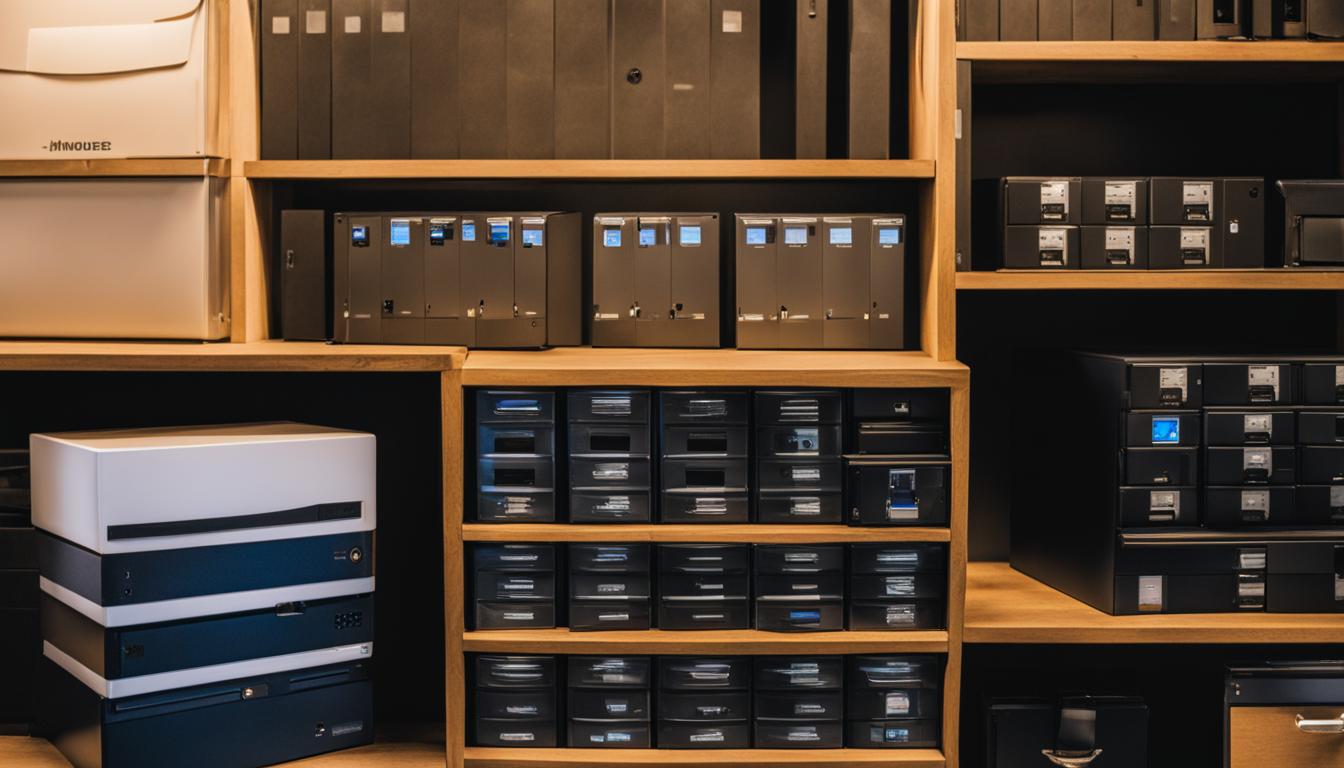
In addition to disk imaging, ShadowProtect SPX Desktop also offers the unique capability to boot backed-up systems as virtual machines. This means that in the event of a system failure, you can quickly get back up and running by running your backups as virtual machines, saving you valuable time and minimizing downtime.
While ShadowProtect SPX Desktop offers powerful features, it’s important to note that the user interface may require some initial familiarization. The software may seem slightly complicated for first-time users, but with a little practice, you’ll be able to navigate and utilize its functionalities effectively.
Furthermore, ShadowProtect SPX Desktop offers flexible licensing options. It provides a one-term permanent license, making it a great choice if you prefer a perpetual license rather than a subscription-based model. However, if you prefer a subscription plan, ShadowProtect SPX Desktop offers that as well, ensuring that you can choose the licensing option that suits your needs and budget.
ShadowProtect SPX Desktop Features:
- Disk imaging
- Full-disk backup
- Booting backed-up systems as virtual machines
- Fast and reliable restoration
- Flexible licensing options
ShadowProtect SPX Desktop Pricing:
| License Type | Pricing |
|---|---|
| One-Term Permanent License | Contact vendor for pricing |
| Subscription Plan | Contact vendor for pricing |
Top Tested Picks: IDrive

In today’s digital world, online backups have become an essential part of data protection. When it comes to reliable online backup services, IDrive is a top choice. With its user-friendly interface and impressive features, IDrive offers a seamless backup experience. Let’s explore why IDrive stands out among its competitors.
Unlimited Devices and 5TB Storage Space
One of the key advantages of IDrive is that it allows you to back up unlimited devices, including mobile devices. Whether you have multiple computers, smartphones, or tablets, IDrive has you covered. This flexibility is especially beneficial for individuals who have data spread across various devices.
Additionally, IDrive provides an impressive 5TB of storage space. This allows you to store a vast amount of data without worrying about running out of storage capacity.
Easy Setup and Fast Upload Speeds

IDrive understands that simplicity is vital when it comes to backup software. The setup process is straightforward and intuitive, enabling users to quickly get started with their backups. You don’t need to be an IT expert to utilize IDrive effectively.
Furthermore, IDrive offers fast upload speeds, ensuring that your data is backed up efficiently. With IDrive, you can save time and have peace of mind knowing that your files are securely stored.
Data Encryption for Added Security
Security is a top priority when it comes to online backups, and IDrive excels in this area. All data stored with IDrive is protected with military-grade 256-bit AES encryption. This ensures that your files are secure and inaccessible to unauthorized individuals.
Moreover, IDrive offers the option to enable a private encryption key, giving you complete control over your data’s security. This additional layer of protection ensures that even if the data was compromised, it would be unreadable without the encryption key.
Free Local Backup
In addition to online backups, IDrive provides free local backup functionality. This means that you can create local backups of your data in addition to storing it securely in the cloud. Having a local backup ensures an extra level of data redundancy and accessibility.
Overall, IDrive offers an exceptional online backup solution that prioritizes data security, ease of use, and flexibility. With its unlimited devices support, generous storage space, fast upload speeds, and robust encryption, IDrive is a reliable choice for individuals and businesses looking to safeguard their valuable data.
| Pros | Cons |
|---|---|
| Unlimited device backup | Storage space is not unlimited |
| 5TB storage space | |
| Easy setup and user-friendly interface | |
| Fast upload speeds | |
| Military-grade data encryption | |
| Private encryption key option | |
| Free local backup |
Top Tested Picks: Acronis Cyber Protect Home Office


When it comes to safeguarding your data, Acronis Cyber Protect Home Office offers a powerful and comprehensive solution. This software provides an array of features and options designed to protect your data through backup and security measures. Whether you prefer local or cloud backup, Acronis Cyber Protect Home Office has got you covered.
One of the standout features of this software is its ability to perform full disk image backup and restoration. This means that not only can you backup your important files, but you can also create a complete copy of your entire disk, including the operating system and installed applications. This ensures that you have everything you need to quickly restore your system in case of a catastrophic failure or data loss.
In addition to backup capabilities, Acronis Cyber Protect Home Office offers robust security features. It protects your data from ransomware attacks by actively monitoring and blocking any suspicious activities. It also provides antivirus protection to keep your system safe from malware, viruses, and other online threats.
Ransomware Protection and Antivirus
Ransomware attacks have become increasingly prevalent, and Acronis Cyber Protect Home Office takes this threat seriously. With its built-in ransomware protection, your data is shielded from unauthorized encryption attempts. The software detects and blocks ransomware attacks, ensuring that your files remain intact and accessible.
Moreover, Acronis Cyber Protect Home Office includes an antivirus module that constantly scans and safeguards your system against malware and other malicious software. This added layer of protection ensures that your computer remains secure and free from harmful threats.
For users who require more control over their backup preferences, Acronis Cyber Protect Home Office offers advanced configuration options. You can tailor your backups to specific requirements, giving you peace of mind and flexibility in managing your data.
However, it is worth noting that some users have reported performance issues with upload speed and the mobile app. This could potentially affect the overall user experience, particularly for those who heavily rely on mobile access to their backups.
Overall, Acronis Cyber Protect Home Office is a top-tested pick for individuals and businesses looking for a comprehensive backup and security solution. Its advanced features, including ransomware protection, antivirus, and extensive configuration options, make it a reliable choice for protecting your valuable data.
Top Tested Picks: Backblaze


When it comes to reliable and convenient backup solutions, Backblaze stands out as one of the top choices available. With its unlimited storage capability, Backblaze offers a seamless way to back up your entire computer to the cloud.
One of the notable features of Backblaze is its support for multi-factor authentication and private encryption keys, ensuring added security for your backed-up data. This means that only you have access to your encrypted files, providing peace of mind knowing that your data is protected.
In the event that online recovery is not feasible, Backblaze offers the option to restore or back up your data via a mailed drive. This feature allows you to have a physical copy of your data in your hands, giving you an alternative way to recover your files.
While Backblaze may lack some advanced features like folder syncing, it appeals to novice users who prioritize simplicity and reliability. Its basic mobile apps also provide easy access to your backed-up data on the go, ensuring that you can retrieve your files whenever and wherever you need them.
Overall, Backblaze is a solid backup solution for individuals who are looking for unlimited storage and straightforward data recovery options. Its combination of unlimited storage, data security features, and basic mobile apps make it an ideal choice for users who want a hassle-free backup solution for a single device.
| Pros | Cons |
|---|---|
| Unlimited storage | Lacks advanced features like folder syncing |
| Multi-factor authentication and private encryption keys for added security | |
| Option for restoring or backing up via a mailed drive | |
| Basic mobile apps for easy access to backed-up data |
The Importance of Backing Up Your Computer


All technology is subject to unexpected data loss, whether due to glitches, hacks, theft, or physical damage. Backup software and services play a crucial role in protecting your business documents, files, photos, videos, and music. While operating systems like Windows and macOS offer built-in backup tools, standalone backup solutions provide additional benefits such as the ability to store copies of files on separate storage and create disk image backups for complete system restoration.
Investing in reliable data backup solutions is essential to safeguarding your valuable information. Here are a few reasons why data backup should be a top priority for every computer user:
- Protection against data loss: Data loss can occur due to various reasons, including hardware failure, accidental deletion, malware attacks, or natural disasters. By regularly backing up your data, you can ensure that even if such incidents occur, you won’t lose valuable files and information.
- Disaster recovery: In the event of a system failure or catastrophic damage to your computer, having a recent backup allows for quick and efficient system recovery. With a reliable backup in place, you can restore your system to a previous state and resume normal operations without significant downtime.
- Peace of mind: Knowing that your data is securely backed up provides peace of mind. Whether it’s important business documents, cherished family photos, or personal files, having a backup ensures that they are safe and can be easily restored if needed.
- Protection against ransomware: Ransomware attacks are becoming increasingly prevalent. These malicious programs encrypt your data and demand payment for its release. With a backup, you can restore your files without having to pay the ransom, effectively neutralizing the impact of ransomware.
- Flexible recovery options: Backup software often offers various recovery options, allowing you to choose specific files or folders to restore. This flexibility ensures that you can retrieve only the necessary data, saving time and storage space.
By understanding the importance of data backup and implementing a reliable backup strategy, you can protect yourself from potentially devastating data loss and ensure the long-term security of your valuable information.
“A good backup strategy is like having a safety net for your digital life. It allows you to recover quickly from any unforeseen events and maintain business continuity.”
Next, we’ll explore how backup software works and the different types of backups that can be performed to ensure comprehensive data protection.
| Backup Solutions | Pros | Cons |
|---|---|---|
| Local backup software | – Provides quick backup and restore times – Allows for offline access to files – Can be more cost-effective for large amounts of data |
– Requires additional hardware or storage devices – Susceptible to physical damage or theft – May not provide off-site storage for disaster recovery |
| Online backup services | – Offers off-site storage for disaster recovery – Provides automatic backups – Allows for remote access to files |
– Requires an internet connection for backup and restore – May have slower upload and download speeds – Can incur ongoing subscription costs |
How Backup Software Works

Backup software plays a critical role in ensuring the safety and security of your data by creating copies of your files on separate storage from your main hard drive. It offers various features and functionalities that enable efficient and reliable backup processes.
One of the key capabilities of backup software is the ability to schedule regular scans for new and changed files. This ensures that any updates or modifications to your data are promptly captured and backed up. Scans can be scheduled daily, weekly, monthly, or set to run continuously, providing you with flexibility and control over your backup strategy.

Backup software also offers different backup types to suit your specific needs. These include:
- Full Backup: This type of backup creates a complete copy of all your files and folders, regardless of whether they have changed or not. It provides comprehensive data protection but can be time-consuming and consume significant storage space.
- Incremental Backup: With incremental backup, only files that have been created or changed since the last backup are copied. This approach reduces backup time and storage requirements, making it ideal for daily backups.
- Differential Backup: Differential backup copies all files that have changed since the last full backup. Unlike incremental backup, it doesn’t take into account the individual file’s previous backup status. While it requires more storage space compared to incremental backup, it simplifies the restoration process by only requiring the latest full backup and the differential backup.
- Disk Image Backup: Disk image backup takes the backup process a step further by creating a snapshot, or image, of your entire hard drive, including the operating system, system files, applications, and settings. This allows for a complete system restoration in case of a critical failure or disaster, ensuring minimal downtime and maximum convenience.
Each backup type has its own advantages, and the choice depends on factors such as data size, backup frequency, storage capacity, and recovery time objectives.
| Backup Type | Advantages |
|---|---|
| Full Backup | Comprehensive data protection |
| Incremental Backup | Fast backup process, reduced storage requirements |
| Differential Backup | Simplified restoration process |
| Disk Image Backup | Complete system restoration, minimal downtime |
The Pros and Cons of Cloud Backup
Cloud backup, also known as online backup, has become a popular choice for securely storing data. With this method, your data is sent over the internet to remote file servers, providing off-site storage that reduces the risk of data loss in case of on-site disasters.
One of the advantages of cloud backup is its convenience. Instead of relying on physical storage devices such as external hard drives, you can access your backed-up data from anywhere with an internet connection. This flexibility is particularly useful for individuals and businesses with multiple locations or remote teams.
However, there are some considerations to keep in mind when it comes to cloud backup. One aspect is the retrieval time. With cloud backup, the process of uploading and downloading data can be slower compared to local copies. This is especially noticeable when dealing with large amounts of data or limited internet bandwidth.
Another factor to consider is the cost. Cloud backup services typically require a monthly or annual fee. While these fees may vary depending on the storage capacity and additional features, they can add up over time. It’s essential to evaluate your budget and storage requirements to determine if cloud backup is cost-effective for your specific needs.
Despite the potential drawbacks, cloud backup offers several advantages that make it a popular choice. It provides an off-site backup solution, reducing the risk of data loss in case of physical disasters or theft. Cloud backup also offers scalability, allowing you to easily increase your storage capacity as your data needs grow.
In conclusion, cloud backup, or online backup, provides a convenient and secure way to store your data off-site. While there may be considerations such as retrieval time and cost, the benefits of cloud backup make it a valuable solution for individuals and businesses alike.
Conclusion
In conclusion, protecting and securing your valuable data is of utmost importance. Whether you opt for local backup software or online backup services, it is critical to have a reliable backup strategy that aligns with your specific needs and budget.
When choosing a backup solution, consider factors such as reliability, ease of use, security features, and storage options. Local backup software allows you to create copies of your data on external hard drives, providing quick access to your files. On the other hand, online backup services offer off-site storage, ensuring the safety of your data in case of on-site disasters. Both options have their advantages, and the decision ultimately depends on your preferences and requirements.
Regardless of the method you choose, implementing a multi terabyte backup solution ensures that you have sufficient storage capacity to protect your data. By regularly backing up your files, you can safeguard against potential risks such as hardware failures, accidental deletions, or data breaches. Additionally, having secure storage for your backups adds another layer of protection to your sensitive information.
Remember, data backup is not a one-time task. It requires ongoing attention and maintenance. Regularly review and update your backup strategy to meet any changing needs or circumstances. By doing so, you can have peace of mind knowing that your data is secure and easily recoverable when needed.
FAQ
Why is backing up my data important?
Backing up your data is crucial to protect against loss due to scenarios such as hard drive crashes, accidental deletion, or theft. It ensures that your valuable files, documents, photos, and videos are securely stored and can be easily restored if needed.
Should I use local backup software or online backup services?
The choice between local backup software and online backup services depends on your preferences and requirements. Local backup software allows you to create copies of your data on external hard drives, offering fast and reliable restoration. On the other hand, online backup services send your data to secure servers for off-site storage, providing protection against on-site disasters. Many backup companies now offer both options, allowing you to choose the method that suits you best.
What is ShadowProtect SPX Desktop?
ShadowProtect SPX Desktop is a highly reliable and mature image backup software that excels in creating complete images of disk partitions. It allows for fast and reliable restoration to the same or different hardware and offers the ability to boot backed-up systems as virtual machines. While the interface may be slightly complicated for first-time users, ShadowProtect SPX Desktop offers a one-term permanent license with subscription plans available.
What is IDrive?
IDrive is an excellent value for online backups, offering 5TB of storage space to back up unlimited devices, including mobile ones. It is easy to set up and provides fast upload speeds. While storage is not unlimited, IDrive offers free local backup and full encryption of data. This makes it a great choice for users with a large amount of data spread across multiple devices.
What is Acronis Cyber Protect Home Office?
Acronis Cyber Protect Home Office is a comprehensive software that offers a wide range of features and options for backup and security. It provides local and cloud backup options, full disk image backup and restore, file syncing, and protection against ransomware and malicious URLs. It is suitable for power users who want to configure their backups according to specific preferences, although it may have some performance issues with upload speed and mobile apps.
What is Backblaze?
Backblaze is a backup service that offers unlimited storage for backing up your entire computer to the cloud. It supports multi-factor authentication and private encryption keys for added security. Backblaze also provides the option to restore or back up via a mailed drive if online recovery is not feasible. While it lacks advanced features such as folder syncing, it is ideal for novice users who want a simple and reliable backup solution for a single device.
Why is backing up my computer important?
Backing up your computer is crucial to protect your data from unexpected loss. Whether it’s due to glitches, hacks, theft, or physical damage, all technology is susceptible to data loss. Backup software and services ensure that your business documents, files, photos, videos, and music are safe and can be easily recovered in case of any unforeseen events.
How does backup software work?
Backup software creates copies of your files on separate storage, such as external hard drives. It allows you to schedule regular scans for new and changed files and offers different backup types, such as full, incremental, and differential. Full backup creates a complete copy of all files. Incremental backup copies only files that have changed since the last backup, while differential backup copies files that have changed since the last full backup. Additionally, disk image backup copies the entire hard drive, including system files, allowing for complete system restoration.
What are the pros and cons of cloud backup?
Cloud backup, also known as online backup, offers the advantage of securely sending your data over the internet to remote file servers for off-site storage. This reduces the risk of data loss in case of on-site disasters. However, cloud backup may have slower upload and download speeds compared to local copies. It also usually requires a monthly or annual fee, although some options like Amazon Glacier offer low-cost storage for infrequently accessed data.
How can I choose the best backup solution for my data?
When choosing a backup solution, consider factors such as reliability, ease of use, security features, and storage options. Determine whether you prefer local backup software or online backup services, depending on your storage and disaster recovery needs. Evaluate the features and performance of different backup software and services to find the solution that best meets your specific requirements and fits your budget.
