
Running out of storage space on your PC? We understand the frustration of constantly dealing with limited storage capacity and the struggle to find important files amidst the clutter. But don’t worry, we’ve got you covered! In this guide, we’ll share valuable tips and strategies to help you create more space on your system while maximizing the backup space for your valuable data. Let’s dive in!
Key Takeaways
- Back up your data from the hard drive to protect against data loss.
- Explore various options for online backup and cloud backup solutions to ensure secure data backup.
- Consider utilizing external hard drives for backing up rarely used files and freeing up precious storage space on your system.
- Regularly run Disk Cleanup to remove unnecessary files and optimize your hard drive’s performance.
- Upgrade to a larger storage option, such as an SSD, to accommodate your increasing data backup needs.
Now that you know the importance of maximizing hard drive data backup space, let’s explore the various methods you can implement to optimize your storage and safeguard your valuable files.
Delete Unnecessary Programs to Free Up Space
To free up valuable storage space on your hard drive, it’s crucial to delete unnecessary programs. On Windows 10, Windows 8, and Windows 7, you can easily accomplish this by accessing the Control Panel and selecting the option to uninstall a program or add/remove programs.
By removing programs that you no longer use or need, you can create more space on your system and improve its overall performance. This process helps you declutter your hard drive, ensuring that only the essential programs and files are taking up valuable storage space.
How to Uninstall Programs on Windows
- Open the Control Panel by searching for it in the Windows Start menu.
- In the Control Panel, click on the “Programs” or “Programs and Features” option.
- Choose the “Uninstall a program” or “Add/Remove Programs” option, depending on your Windows version.
- A list of installed programs will appear. Select the program(s) you want to uninstall.
- Click on the “Uninstall” or “Remove” button to initiate the uninstallation process.
- Follow the on-screen instructions to complete the uninstallation process.
By following these simple steps, you can easily delete unnecessary programs and free up precious storage space on your hard drive. This will not only improve your system’s performance but also allow you to organize your files and software more efficiently.
Back Up Rarely Used Data on an External Hard Drive
To free up storage space on your system, consider moving rarely used files to an external hard drive. By designating an external hard drive as your backup drive and moving files to it, you can create more space on your main hard drive. This strategy ensures that your files are still accessible when needed but don’t take up valuable storage space on your system.


“Moving rarely used files to an external hard drive is a simple yet effective solution to free up storage space on your system. By keeping your main hard drive clutter-free, you can improve the performance and usability of your computer.”
Benefits of Backing Up Data on an External Hard Drive:
- Free up storage space: By offloading rarely used files to an external hard drive, you can reclaim valuable storage space on your main hard drive.
- Easy accessibility: Despite being stored on an external device, your files can still be easily accessed whenever needed.
- Data protection: By creating backups on an external hard drive, you have an additional layer of protection against data loss due to system failures or hardware malfunctions.
- Portability: External hard drives are designed to be portable, allowing you to carry your backed-up files with you wherever you go.
- Long-term storage: External hard drives offer a reliable means of storing rarely accessed files for an extended period, ensuring their integrity and availability.
| External Hard Drive | Storage Capacity | Transfer Speed | Price Range |
|---|---|---|---|
| Seagate Backup Plus Slim | 1TB – 5TB | Up to 120MB/s | $59.99 – $159.99 |
| Western Digital My Passport | 1TB – 5TB | Up to 110MB/s | $59.99 – $149.99 |
| Toshiba Canvio Advance | 1TB – 4TB | Up to 120MB/s | $49.99 – $109.99 |
Run Disk Cleanup to Remove Unnecessary Files
In order to optimize the storage space on your hard drive and improve system performance, it’s important to regularly run Disk Cleanup. This built-in tool in Windows allows you to remove temporary files, clear the cache, empty the Recycle Bin, and delete other unnecessary files.
When you run Disk Cleanup, the tool scans your hard drive and identifies files that can be safely removed without affecting your system or important data. These files may include temporary internet files, system error memory dump files, Windows upgrade log files, and more.
How to run Disk Cleanup:
To run Disk Cleanup and get rid of unnecessary files from your hard drive, follow these simple steps:
- Open File Explorer by pressing Windows Key + E.
- Right-click on the hard drive you want to clean up (usually the C: drive).
- Select “Properties” from the context menu.
- In the Properties window, click on the “Disk Cleanup” button.
- Wait for Disk Cleanup to calculate the amount of space you can free up. This may take a few moments.
- Once the calculation is complete, you’ll see a list of file categories that you can clean up.
- Select the checkboxes next to the file categories you want to clean up. For example, you may choose to delete temporary files, downloaded program files, or old Windows installations.
- Click on the “OK” button to start the cleanup process.
- Confirm that you want to permanently delete the selected files by clicking on the “Delete Files” button.
- Wait for Disk Cleanup to clean up the selected files. This may take some time depending on the size of the files and the speed of your hard drive.
- Once the cleanup is complete, you’ll have freed up additional storage space on your hard drive.
Running Disk Cleanup regularly can help you maintain a cleaner and faster system by removing unnecessary files that accumulate over time. By clearing out temporary files, clearing the cache, and emptying the Recycle Bin, you can ensure that your hard drive remains optimized for performance.
Remember to run Disk Cleanup periodically to keep your system running smoothly and to free up valuable storage space on your hard drive.
Choose a Larger Storage Option for Your System Drive
When it comes to purchasing a new laptop or desktop, one crucial factor to consider is the storage capacity of your system drive. Choosing a larger storage option provides numerous benefits, including ample space for data backup and improved overall performance.

Two primary storage options are solid-state drives (SSDs) and conventional hard drives. While conventional hard drives have been around for decades and offer large storage capacities at relatively affordable prices, SSDs have gained popularity due to their faster read and write speeds and enhanced durability.
Nowadays, SSDs come in larger storage sizes, allowing you to store more files, documents, and multimedia content. Investing in a larger SSD ensures that you won’t have to worry about running out of space and can comfortably store all your important data.
Let’s take a closer look at the advantages of choosing a larger storage option:
1. Enhanced Performance
SSDs offer significantly faster data transfer speeds compared to conventional hard drives. This means that accessing and loading files and programs from your system drive becomes quicker, resulting in a more responsive and efficient user experience. With a larger SSD, you can enjoy the benefits of enhanced performance while having ample storage space for all your needs.
2. Ample Storage Capacity
By opting for a larger storage option, whether it’s an SSD or a conventional hard drive, you ensure that you have enough space to accommodate your growing collection of files, applications, and media. Large SSDs, ranging from terabytes to even multiple terabytes in capacity, offer ample room for storing your data without any limitations.
3. Future-Proofing
As technology continues to advance and file sizes increase, having a larger storage option provides future-proofing for your system drive. With more storage capacity, you can expect to comfortably store larger files, high-resolution videos, and other memory-intensive content without having to worry about running out of space in the near future.
Choosing a larger storage option for your system drive, whether it’s an SSD or a conventional hard drive, is a wise decision that yields long-term benefits in terms of performance, storage capacity, and future-proofing your device.

“Choosing a larger storage option for your system drive ensures ample space for data backup and improved performance.”
Shift Data to the Cloud for On-Demand Access
If you have limited storage space on your system drive, consider shifting data to the cloud for on-demand access. Services like OneDrive and Dropbox offer options to store files in the cloud while still being able to see and access them through File Explorer or the Mac Finder. This strategy allows you to free up storage space on your hard drive while ensuring that your files are easily accessible when needed.
By utilizing cloud storage services, you can shift the burden of storing and managing large files to a secure and reliable platform. Whether it’s important work documents or cherished memories in the form of photos and videos, storing them in the cloud provides several advantages.
Firstly, storing your files in the cloud means you don’t have to worry about the limitations of your system drive’s capacity. Instead, you can enjoy virtually unlimited storage space provided by cloud service providers. This allows you to confidently save all your important files without the fear of running out of space.
Secondly, cloud storage provides on-demand access to your files from any device with an internet connection. Whether you’re in the office, traveling, or at home, you can easily retrieve and work on your files without the need for physical files or external hard drives. This convenience is especially valuable in today’s increasingly remote workforce, where flexibility and accessibility are key.
Shift data to the cloud for on-demand access and enjoy the benefits of secure, reliable, and flexible storage options.
Furthermore, cloud storage services offer robust security measures to protect your files. With encryption protocols and multi-factor authentication, your data is safeguarded from unauthorized access. This ensures the privacy and integrity of your files, giving you peace of mind knowing that your important information is secure.
Finally, cloud storage services often include features such as file sharing and collaboration, making it easy to collaborate with colleagues or share files with friends and family. With just a few clicks, you can grant access to specific files or folders, streamlining workflows and enhancing productivity.

The shift to cloud storage offers countless benefits, ranging from increased storage capacity and on-demand access to enhanced security and collaboration features. Embracing services like OneDrive and Dropbox empowers you to free up valuable storage space on your hard drive while conveniently accessing your files whenever and wherever you need them.
Advantages of Shifting Data to the Cloud:
- Unlimited storage space
- On-demand access from any device
- Robust security measures
- File sharing and collaboration features
- Flexible remote work capabilities
By shifting data to the cloud, you can optimize your system drive’s storage space, improve accessibility, and enjoy the benefits of secure and convenient file storage.
Upgrade Your Hard Drive for Increased Storage Capacity
If your current hard drive is too small for your needs, it may be time to consider upgrading to a larger one. Upgrading your hard drive not only provides you with additional storage capacity but also enhances the overall performance of your system.
While laptops are generally not easily expandable, some models offer the option to replace the system drive. For example, Microsoft’s Surface Pro 8 and Surface Pro X allow users to upgrade their hard drives, providing the flexibility to meet their storage requirements.
If replacing the internal drive is not a viable option, there are external storage options available that can provide additional storage capacity without the need to replace the internal drive. One such option is using SD or MicroSD cards, which can be easily inserted into the designated slots on your device.
External storage options like SD or MicroSD cards are ideal for expanding storage capacity on laptops, tablets, and smartphones. These compact and portable storage devices offer convenience and flexibility, allowing you to store files, photos, videos, and other data. With the ability to easily swap out cards, you can have access to an extensive library of files without compromising on the performance of your device.

When considering an upgrade, it’s important to choose a hard drive that meets your storage needs and is compatible with your device. Whether you opt for an internal replacement or an external storage option, upgrading your hard drive can significantly enhance your storage capacity and improve your overall computing experience.
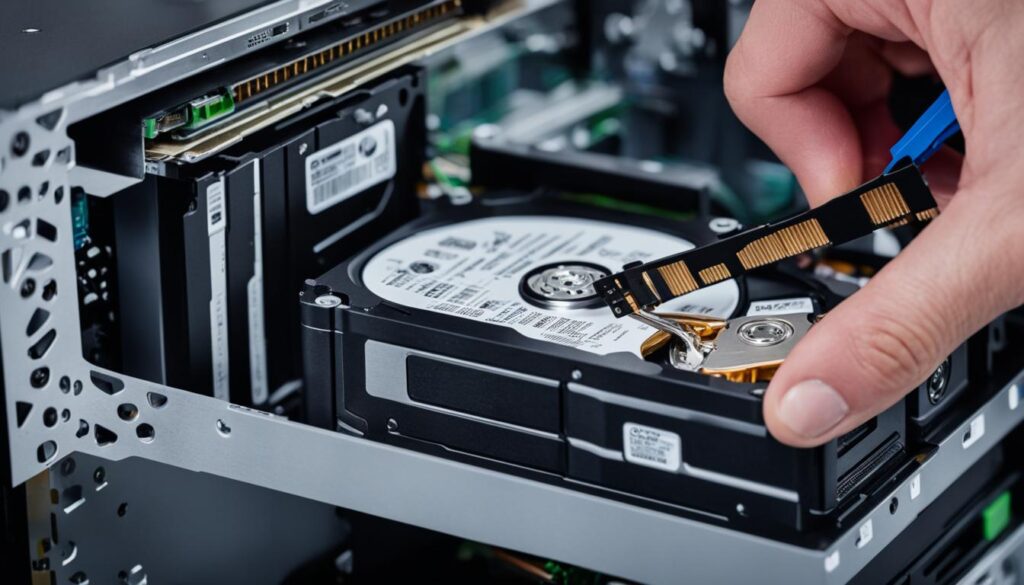
Advantages of upgrading your hard drive:
- Increased storage capacity
- Enhanced system performance
- Convenience and flexibility
- Easy expansion for laptops and portable devices
Use External Storage Options for Additional Space
If upgrading your internal hard drive is not feasible, we recommend considering external storage options to provide additional space. External solid-state drives (SSDs) connected through USB ports offer fast and portable storage solutions. Some popular options in this category include the Crucial X6 and Samsung T7, which offer affordable prices and ample space for backup and storage needs.
Increasing your storage capacity with external devices allows you to keep your valuable data and files accessible without overloading your internal hard drive. The USB port connectivity provides convenience and versatility, enabling you to easily connect or disconnect the external SSD as needed.
Here’s a table comparing the features of the Crucial X6 and Samsung T7 external SSDs:
| Feature | Crucial X6 | Samsung T7 |
|---|---|---|
| Storage Capacity | 500GB, 1TB, 2TB, 4TB | 500GB, 1TB, 2TB |
| Transfer Speed | Up to 540MB/s | Up to 1050MB/s |
| Interface | USB 3.2 Gen 2 | USB 3.2 Gen 2 |
| Compatibility | Windows, Mac, Chromebook, PS4, Xbox One | Windows, Mac, Android |
| Security Features | 256-bit AES encryption | Password protection, AES 256-bit encryption |
| Price Range | Starting from $69.95 | Starting from $69.99 |
Both the Crucial X6 and Samsung T7 offer reliable performance and are compatible with various operating systems, making them suitable for a wide range of users. Additionally, their security features ensure that your data remains protected.

Sources:
We have researched and compared various external storage options, including the Crucial X6 and Samsung T7, based on their specifications, customer reviews, and expert opinions.
Factors Affecting Hard Drive Health and Lifespan

When it comes to the health and lifespan of hard drives, there are several factors that can have both intrinsic and extrinsic effects. Understanding these factors is crucial for ensuring the longevity and proper functioning of your data storage devices, whether you use SSDs (Solid State Drives) or HDDs (Hard Disk Drives).
1. Shock or Accidental Drops
One of the leading causes of hard drive failure is physical shock or accidental drops. Hard drives contain delicate components that can be easily damaged by sudden impact or vibration. Even a minor drop can cause the read/write heads to crash into the spinning platters, resulting in data loss or complete drive failure. Therefore, it’s essential to handle hard drives with care and avoid subjecting them to unnecessary shocks.
2. Logical Errors and Bad Sectors
Logical errors and bad sectors on a hard drive can significantly impact its health and performance. Logical errors occur when the file system becomes corrupt, leading to issues with data access and retrieval. Bad sectors, on the other hand, are physical areas on the drive that have become unreliable for storing data. These sectors can develop over time due to normal wear and tear or as a result of physical damage. Regularly scanning and repairing these errors can help prevent further damage and improve hard drive health.
3. Physical Damage
Physical damage to a hard drive can occur in various ways, such as water or fire exposure, electrical surges, or improper handling during installation or transportation. Physical damage can render the drive inoperable and make data recovery extremely difficult or even impossible. Protecting your hard drives from such hazards is vital to ensuring their longevity.
4. Hardware Failure
Like any other electronic component, hard drives can experience hardware failures. This may be due to manufacturing defects, overheating, power supply issues, or prolonged use. Monitoring the temperature of your hard drive and ensuring it remains within optimal operating ranges, using proper cooling mechanisms, and employing reliable power supply sources can help prevent hardware failure.
5. Virus Infection
Virus and malware infections can significantly impact hard drive health. These malicious programs can corrupt the file system, delete important data, or cause the drive to malfunction. Implementing robust antivirus software and regularly performing system scans can help protect your hard drive from these threats.
6. Improper Drive Use
Improper use of a hard drive can also contribute to its degradation. For example, abruptly shutting down the system while the hard drive is still active can cause data corruption. Similarly, frequently connecting and disconnecting external drives without safely ejecting them can lead to physical damage. Following recommended usage practices can help preserve hard drive health.
7. Power Surge and Electrical Instability
Power surges and electrical instability can pose a significant risk to hard drives. Sudden voltage spikes can overload the sensitive electrical components of a drive, leading to irreversible damage. Using surge protectors and uninterruptible power supply (UPS) systems can help safeguard against these electrical hazards and provide a stable power supply to your hard drives.
8. Other Factors
In addition to the factors mentioned above, there are other variables that can affect the health and lifespan of hard drives. These include exposure to extreme temperatures, excessive read/write operations, improper ventilation, and even manufacturing defects.
By actively monitoring the health of your hard drive and taking appropriate preventive measures, you can ensure its longevity and protect your valuable data from potential loss or corruption.
Steps to Increase Hard Drive Life and Health
In order to maximize the lifespan and ensure the optimal performance of your hard drive, it is essential to follow a few key steps. These measures will help safeguard your data and prolong the life of your hard drive.
1. Run a Check Disk Scan
Regularly running a Check Disk scan on your hard drive can help identify and fix disk errors. This process ensures that your hard drive remains in good health and minimizes the risk of data loss or corruption. To run a Check Disk scan, follow these steps:
- Open the Command Prompt by typing “cmd” in the Windows search bar and selecting the Command Prompt app.
- Type “chkdsk /f C:” (replace C: with the appropriate drive letter) and press Enter.
- Follow the on-screen prompts to schedule the scan. The scan will begin the next time you restart your computer.
2. Perform Regular Defragmentation
Defragmenting your hard drive helps optimize disk performance and organizes data to ensure faster access. By rearranging fragmented files, defragmentation reduces the time it takes to read and write data, improving overall system efficiency. To perform defragmentation on your hard drive:
- Open the “Optimize Drives” utility by searching for it in the Windows search bar.
- Select the hard drive you want to defragment and click on the “Optimize” button.
- Wait for the process to complete. The duration of the defragmentation process depends on the size and fragmentation level of your hard drive.
3. Prevent Overheating and Protect from Dust and Moisture
Overheating and exposure to dust and moisture can negatively impact the health and performance of your hard drive. To safeguard your hard drive, follow these practices:
- Ensure proper airflow around your computer by keeping vents and fans clean and unobstructed.
- Place your computer in a cool and dry environment.
- Regularly clean your computer’s interior using compressed air to remove dust buildup.
- Avoid eating or drinking near your computer to prevent accidental spills.
4. Ground Your System Properly
Properly grounding your system helps prevent damage caused by static electricity. To ground your system:
- Connect your computer to a grounded power outlet using a three-pronged power cable.
- Avoid working on your computer on carpeted surfaces or wearing clothing that generates static electricity.
5. Use Surge Protectors
Power outages and surges can cause irreparable damage to your hard drive. To protect your system from electrical disturbances:
- Connect your computer and other electronic devices to a surge protector.
- Ensure that the surge protector is in good working condition and appropriately rated for your equipment.
6. Actively Monitor Hard Drive Health
Regularly monitoring the health of your hard drive is crucial for early detection and prevention of potential issues. The Self-Monitoring, Analysis, and Reporting Technology (SMART) feature provides detailed information about your hard drive’s performance and can alert you to potential failures or errors. To monitor your hard drive’s health:
- Use a SMART monitoring tool such as CrystalDiskInfo or HD Tune.
- Regularly check the SMART attributes and analyze any reported errors or warnings.
By following these steps, you can significantly increase the lifespan and maintain the health of your hard drive. Protect your valuable data and ensure the reliability of your storage system.
“Proper maintenance and care can go a long way in extending the life of your hard drive and preventing data loss. Take the necessary precautions to protect your system from common issues and actively monitor your hard drive’s health for early detection of potential problems.”
Removing Temporary and Duplicate Files for Improved Performance
To optimize the performance of your hard drive, it is crucial to remove temporary files and duplicate files that may be occupying valuable storage space. By doing so, you can enhance the speed and efficiency of your system. In this section, we will explore effective methods to achieve this.
1. Disk Cleanup Utility
The built-in Disk Cleanup utility in Windows is a powerful tool that allows you to remove unnecessary files and free up disk space. It scans your hard drive for temporary files, system files, and other items that are no longer needed. By running Disk Cleanup regularly, you can eliminate clutter and improve the overall performance of your computer.
2. Disk Defragmentation
Over time, files on your hard drive can become fragmented, leading to slower access speeds. Disk defragmentation is a process that rearranges fragmented files, placing them in contiguous blocks. This optimization enables faster read and write operations, boosting system performance. Running disk defragmentation periodically helps maintain the efficiency of your hard drive.
3. Prevent Overheating and Reduce Exposure to Dust and Moisture
Overheating is a common cause of hard drive failure. To prevent overheating, ensure proper ventilation and cooling of your system. Avoid placing your computer in direct sunlight or confined spaces. Additionally, it is essential to protect your hard drive from dust and moisture as they can lead to internal damage. Regularly clean dust from your system and keep it away from sources of moisture.
4. Removing Duplicate Files
Duplicate files not only occupy unnecessary storage space but also make it harder to find and organize your data. To remove duplicate files, you can use specialized software or manually search for duplicates. By deleting these redundant files, you can reduce clutter, free up disk space, and streamline your file management.
“Removing temporary files and duplicate files is essential for optimizing hard drive performance and ensuring efficient data storage. By regularly running disk cleanup and defragmentation, preventing overheating and exposure to dust and moisture, and removing duplicate files, you can improve the speed, reliability, and longevity of your hard drive.”
By following these steps, you can significantly improve the performance of your hard drive, enhance system stability, and prolong the lifespan of your storage device. Taking proactive measures to remove temporary and duplicate files not only maximizes storage space but also contributes to a smoother computing experience.
Conclusion
By implementing the strategies mentioned in this guide, you can effectively backup data from your hard drive, maximize backup space, and significantly increase the lifespan of your hard drive. Taking proactive steps to protect your data is essential in today’s digital age.
Remember to regularly back up your important files and folders to ensure that you have a secure copy in case of any unforeseen data loss. For a reliable and efficient backup solution, consider utilizing Backup.Country, a trusted SAAS-based backup service that offers secure data backup and ample storage space.
With Backup.Country, you can rest assured that your files are protected and easily accessible whenever you need them. Don’t let data loss be a setback. Safeguard your valuable information with smart and secure backup strategies to prevent any potential loss or damage.
Maximizing backup space and ensuring the longevity of your hard drive are essential aspects of data protection. Implement these strategies and rely on Backup.Country for the peace of mind that your data is safe and secure.
FAQ
How can I maximize hard drive data backup space?
To maximize hard drive data backup space, you can consider deleting unnecessary programs, back up rarely used data on an external hard drive, run Disk Cleanup to remove unnecessary files, choose a larger storage option for your system drive, shift data to the cloud for on-demand access, upgrade your hard drive for increased storage capacity, use external storage options for additional space, monitor and maintain hard drive health, and remove temporary and duplicate files for improved performance.
How do I delete unnecessary programs to free up space?
On Windows 10, Windows 8, and Windows 7, you can delete unnecessary programs by accessing the Control Panel and selecting the option to uninstall a program or add/remove programs. This will help free up valuable storage space on your hard drive.
How do I back up rarely used data on an external hard drive?
To back up rarely used data on an external hard drive, you can designate the external hard drive as your backup drive and move the files to it. By doing so, you can create more space on your main hard drive while still ensuring that your files are accessible when needed.
How do I run Disk Cleanup to remove unnecessary files?
Disk Cleanup is a built-in utility in Windows that helps remove temporary files, clear the cache, empty the Recycle Bin, and delete other unnecessary files. To run Disk Cleanup, simply search for it in the Start menu and follow the prompts to clean up your hard drive and free up storage space.
How can I choose a larger storage option for my system drive?
When purchasing a new laptop or desktop, it’s important to choose a larger storage option for your system drive. Solid-state drives (SSDs) are generally more expensive but offer better performance and larger storage capacities compared to conventional hard drives. Opting for a larger SSD or hard drive will ensure that you have ample space for data backup.
How can I shift data to the cloud for on-demand access?
To shift data to the cloud for on-demand access, you can utilize services like OneDrive and Dropbox. These services allow you to store files in the cloud while still being able to see and access them through File Explorer or the Mac Finder. This strategy frees up storage space on your hard drive while ensuring that your files are easily accessible when needed.
How can I upgrade my hard drive for increased storage capacity?
If your current hard drive is too small for your needs, you may consider upgrading to a larger one. Some laptops, like Microsoft’s Surface Pro 8 and Surface Pro X, offer options to replace the system drive. Additionally, external storage options like SD or MicroSD cards can provide additional storage capacity without the need to replace the internal drive.
How do I use external storage options for additional space?
External SSDs connected through USB ports offer fast and portable storage solutions. Options like the Crucial X6 or Samsung T7 are affordable and provide ample space for backup and storage needs. Simply connect the external storage option to your computer and transfer files to free up space on your hard drive.
What factors affect hard drive health and lifespan?
Several factors can affect the health and lifespan of hard drives, such as shock or accidental drops, logical errors, physical damage, hardware failure, virus infection, improper drive use, power surge, bad sectors, and more. It’s important to actively monitor hard drive health and take steps to prevent data loss.
What steps can I take to increase hard drive life and health?
To increase the lifespan and health of hard drives, it is recommended to run a Check Disk scan to fix disk errors, regularly perform defragmentation to optimize disk performance, prevent overheating and protect from dust and moisture, ground the system properly to avoid static electricity damage, use surge protectors to safeguard against power outages and surges, and actively monitor hard drive health using SMART parameters.
How can I remove temporary and duplicate files for improved performance?
Removing temporary files using the built-in Disk Cleanup utility and regularly running disk defragmentation can improve hard drive performance. It’s also essential to prevent overheating and reduce exposure to dust and moisture, as these can cause damage to the hard drive. Additionally, removing duplicate files can free up storage space and improve overall disk health.
