
When it comes to protecting your valuable data on a Mac server, relying solely on Time Machine and iCloud may not be enough. It is recommended to have at least two separate backup schedules, with at least one of them backing up to an offsite drive. There are various backup software options available that offer different features and functionalities, such as regular backups, clones, synchronization, and online backup services.
Key Takeaways:
- Having at least two separate backup schedules is essential for Mac server data security.
- Consider using backup software with features such as regular backups, clones, synchronization, and online backup services.
- Offsite backup services provide an extra level of security for your Mac server data.
- Choose the best backup software for your Mac server based on your specific needs.
- Implement a 3-2-1 backup strategy to ensure data redundancy and protection.
The Importance of Regular Backups
Regular backups are crucial for ensuring the safety of your data on a Mac server. With the wealth of digital information we accumulate and depend on, a reliable backup solution is essential to protect against data loss and potential setbacks.
Apple’s Time Machine is a popular choice for regular backups, offering a straightforward and user-friendly option as it comes included with macOS. Time Machine allows you to create snapshots of your data, enabling easy restoration in case of accidental deletion or system failure.
However, there are also third-party backup software solutions available that offer more advanced features and capabilities specific to Mac servers. These backup software options allow you to easily schedule and automate regular backups, ensuring that your data is consistently protected.
Using backup software designed specifically for Mac servers provides added benefits, such as:
- Flexibility: Backup software allows you to tailor your backup routines based on your specific needs and preferences. You can choose which files and folders to back up, prioritize critical data, and optimize storage space.
- Incremental backups: Backup software performs efficient backups by only copying the files that have changed since the last backup. This minimizes the time and storage space required for each backup, allowing for faster and more efficient data protection.
- Encryption: Many backup software options offer encryption features to secure your data during transit and storage. This ensures that your sensitive information remains confidential and protected from unauthorized access.
- Multi-platform support: Some backup software solutions are compatible with both Mac and Windows systems, allowing you to create a unified backup strategy across multiple platforms within your environment.
By incorporating regular backups into your workflow, you can have peace of mind knowing that your valuable data is safeguarded against unexpected events. Whether you choose Time Machine or an alternative backup software, the key is to establish a routine and ensure that backups are performed on a consistent basis.
“The only backup that is worth anything is the backup that you do regularly.”
Regular backups enable you to restore your Mac server to a previous state, recover lost or corrupted files, and mitigate the potential risks associated with data loss. The investment of time and resources in a reliable backup solution is a small price to pay, considering the potential consequences of data loss.

Remember, when it comes to your data, an ounce of prevention is worth a pound of cure.
Comparison of Mac Server Backup Options
| Backup Software | Features | Price |
|---|---|---|
| Time Machine (Built-in) | – Easy to use – Snapshot-based backups – Included with macOS |
Free |
| Acronis Cyber Protect Home Office | – Local and cloud backups – Cloning and synchronization – Advanced security features |
Starting from $49.99 per year |
| Get Backup Pro | – Full and incremental backups – Bootable clones – Folder synchronization |
$19.99 (single license) |
| ChronoSync | – File synchronization – Scheduled backups – Network and cloud support |
Starting from $49.99 (Express version available) |
Creating Clones for Data Redundancy
Creating clones of your Mac server’s hard drive is a highly recommended backup method to ensure data redundancy and minimize the risks of data loss. Clones are exact copies of your hard drive, replicating all files, settings, and configurations. This provides an additional layer of security, allowing you to boot from the clone in case of a hard drive failure.
Cloning your Mac server’s hard drive creates an exact duplicate, giving you a fail-safe option to quickly restore your system and continue operations without any interruptions. It’s like having a spare tire, ready to replace the damaged one instantly.
By having a bootable clone readily available, you can minimize downtime and swiftly restore your Mac server to its previous state. This is especially important for businesses and individuals relying on their Mac servers for critical operations and data storage.
However, it’s essential to keep in mind that the compatibility of bootable clones can vary depending on the version of macOS and the specific Mac model you have. It is crucial to use backup software for Mac servers that supports the creation of bootable clones and provides seamless compatibility with your system.
When selecting a backup software for Mac server clones, consider the following features:
- Ability to create bootable clones
- Compatibility with your Mac server model and macOS version
- Reliable and efficient cloning process
- User-friendly interface for easy setup and management
Here is an image illustrating the process of creating clones for data redundancy:
The process of creating clones for data redundancy:
| Step | Description |
|---|---|
| 1 | Launch the backup software and connect the destination drive where the clone will be stored. |
| 2 | Select the source hard drive, which is your Mac server’s main drive. |
| 3 | Choose the destination drive where the clone will be created. |
| 4 | Initiate the cloning process and wait for it to complete. |
| 5 | Verify the integrity and usability of the clone to ensure it is a reliable backup. |

Creating clones for data redundancy is an effective way to add an extra layer of protection to your Mac server. By utilizing backup software that supports bootable clones, you can have peace of mind knowing that your data is backed up and easily accessible in case of a hardware failure or data loss event.
Synchronizing Folders for Data Consistency
When it comes to ensuring data consistency on your Mac server, folder synchronization is a powerful backup method. By synchronizing folders, you can maintain multiple copies of your important data across various drives or computers. This not only safeguards your data but also keeps it up to date across all devices.

One reliable backup software that offers folder synchronization functionality is ChronoSync. With ChronoSync, you can easily sync folders on your Mac server with other drives or computers, ensuring that changes made in one location are replicated in all synchronized locations. This feature is particularly useful for teams or individuals who work on multiple devices or frequently collaborate on shared projects.
Benefits of Folder Synchronization:
- Consistent Data: Folder synchronization ensures that all copies of your important folders have the same and most up-to-date data, minimizing the risk of data discrepancies.
- Efficient Collaboration: With synchronized folders, team members can easily access and work on the same files, facilitating seamless collaboration.
- Redundancy: By keeping multiple copies of your folders, folder synchronization provides an additional layer of data redundancy, reducing the chances of data loss.
By leveraging the folder synchronization capabilities of backup software like ChronoSync, you can streamline your workflow, improve data consistency, and enhance collaboration on your Mac server.
Offsite Backup Services for Added Security
When it comes to securing your valuable data on a Mac server, offsite backup services provide an extra layer of protection. These services store your backups on secure servers, safeguarding your data from physical disasters or theft. By entrusting your backups to offsite servers, you can ensure that even if something happens to your physical server, your data remains safe and accessible.
The process of setting up an offsite backup service involves an initial backup of all your data, which may take some time depending on the size of your server and your internet connection. However, subsequent backups will only copy the files that have changed, significantly reducing the time and bandwidth required for future backups.

There are several popular offsite backup services available that offer robust security and reliability. Some of the leading providers include Backblaze, Carbonite, and IDrive. These services offer customizable backup plans, advanced encryption to protect your data during transit and storage, and user-friendly interfaces for easy management of your backups.
With offsite backup services, you can have peace of mind knowing that your Mac server data is backed up and securely stored, ready to be restored whenever needed. Whether it’s protecting important documents, customer information, or critical business data, offsite backup services are an essential component of a comprehensive backup strategy.

The Benefits of Offsite Backup Services:
- Enhanced Security: Offsite backup services store your data on secure servers, protecting it from physical threats such as fires, floods, or theft.
- Efficient Backups: Subsequent backups only copy the files that have changed, reducing the time and bandwidth required.
- Data Accessibility: Your backed-up data is easily accessible from anywhere with an internet connection.
- Scalability: Offsite backup services offer flexible storage options, allowing you to scale your backup solution as your data grows.
- Peace of Mind: With offsite backups, you can rest assured that your critical data is safe and can be restored in the event of data loss or server failure.
Incorporating offsite backup services into your Mac server backup strategy is a proactive measure to safeguard your data against unforeseen events. By utilizing reputable services and regularly updating your backups, you can protect your business, personal files, and sensitive information from potential risks and ensure business continuity.
The Best Backup Software for Mac Server
When it comes to choosing the right backup software for your Mac server, Acronis Cyber Protect Home Office stands out as a highly recommended solution. This powerful software offers a range of features and functionalities to ensure the security and protection of your valuable data.
With Acronis Cyber Protect Home Office, you have the flexibility to back up your data to various locations, including a local disk, Acronis Cloud, or a network-attached storage device. This allows you to create redundant copies and ensure that your data is easily accessible when needed.
One of the standout features of Acronis Cyber Protect Home Office is its ability to combine local backups with cloud backup. This means that you can have the peace of mind of having your data stored on-site, while also taking advantage of the added security and accessibility of cloud storage.
Key Features of Acronis Cyber Protect Home Office:
- Malware Protection: The software provides advanced security measures, including malware protection, to safeguard your data from potential threats.
- File Synchronization: You can easily synchronize your files across multiple devices, ensuring that you have the latest versions at all times.
- Startup Disk Cloning: Acronis Cyber Protect Home Office allows you to clone your startup disk, providing a reliable backup that can be used in case of a hard drive failure.
Overall, Acronis Cyber Protect Home Office is a comprehensive backup software solution that offers both ease of use and advanced features. Whether you need to back up your data locally, to the cloud, or both, this software has you covered.


By choosing Acronis Cyber Protect Home Office, you can have peace of mind knowing that your Mac server data is protected and easily recoverable in the event of a data loss.
Get Backup Pro – Flexible Backup Solution for Mac Servers
When it comes to securing your valuable data on a Mac server, Get Backup Pro is a versatile and reliable backup solution. Whether you need to back up your entire hard drive or specific folders, create bootable clones, or synchronize files and folders on different drives, Get Backup Pro offers the flexibility you need.
Unlike other backup software options, Get Backup Pro does not have its own cloud service. However, if you want to back up to the cloud, you can use third-party tools in conjunction with Get Backup Pro. This allows you to take advantage of the software’s advanced features while still ensuring your backups are safely stored in the cloud.
If you’re unsure about committing to Get Backup Pro, the software offers a free trial. This gives you the opportunity to explore its features and functionality before making a purchase. Once you decide to upgrade, you can choose between a single license or a family pack for multiple Macs, depending on your needs and requirements.
Key Features of Get Backup Pro include:
- Full hard drive backup
- Selective folder backup
- Bootable clone creation
- File and folder synchronization
With Get Backup Pro, you can have peace of mind knowing that your Mac server data is protected and easily recoverable. Its user-friendly interface and powerful features make it an ideal choice for individuals and businesses alike.

What Others Are Saying:
“Get Backup Pro has been a game-changer for our Mac server backups. The ability to create bootable clones has saved us from potential disasters, and the synchronization feature keeps all our files up to date across different drives. Highly recommended!” – Mark Thompson, IT Manager
ChronoSync – File Synchronization and Backup for Mac Servers

When it comes to file synchronization and backup for Mac servers, ChronoSync is a powerful software solution that offers a wide range of features. With ChronoSync, you have the flexibility to manually run backups or schedule them according to your specific needs. Whether you want to back up to local hard drives, network-attached storage devices, or even other Macs or cloud storage, ChronoSync has you covered.
One of the key advantages of ChronoSync is its ability to perform incremental backups. This means that after the initial backup, the software only copies the changes made to your files, resulting in faster backup times and reduced storage requirements. Additionally, ChronoSync checks for changes in file metadata, ensuring that your backups remain up to date and accurate.
In the world of Mac server backup tools, ChronoSync stands out for its advanced functionality and user-friendly interface. The software offers a fully functional trial version, allowing you to test its capabilities before making a purchase. If you’re looking for a more affordable option without compromising on features, ChronoSync Express is also available.
With ChronoSync, you can have peace of mind knowing that your Mac server data is protected and accessible whenever you need it. Whether you’re a small business owner, a freelancer, or an individual user, investing in reliable backup software like ChronoSync is essential for safeguarding your valuable data.
Key Features of ChronoSync:
- File synchronization and backup for Mac servers
- Manually run backups or schedule them
- Support for local hard drives, network-attached storage devices, and other Macs or cloud storage
- Incremental backups for faster backup times and reduced storage requirements
- Checks for changes in file metadata
- User-friendly interface and advanced functionality
- Fully functional trial version available
- Affordable option with ChronoSync Express
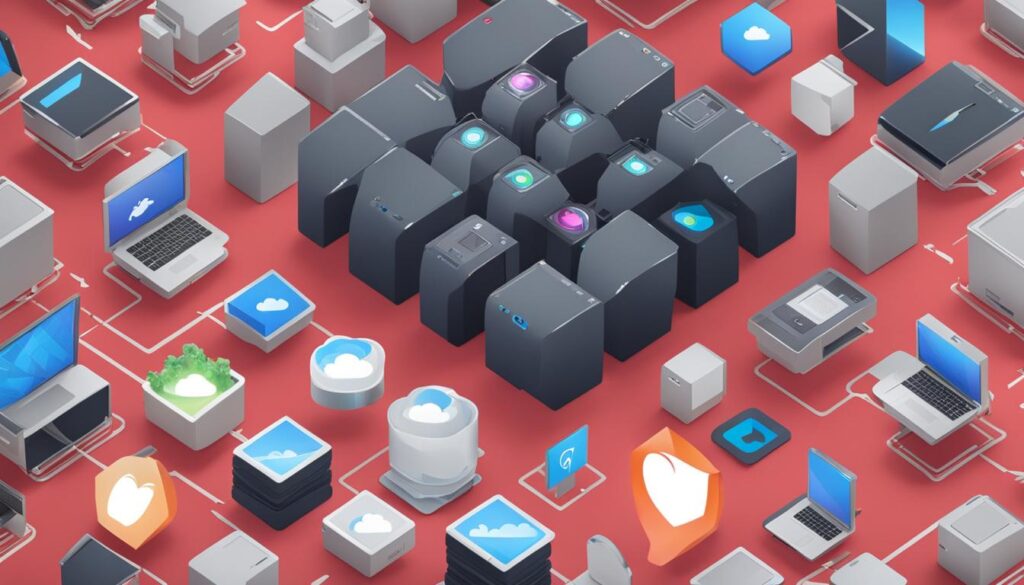
ChronoSync is a reliable and efficient backup software for Mac servers, offering comprehensive file synchronization and backup capabilities. Don’t leave the security of your valuable data to chance. Invest in ChronoSync and ensure the continuity of your business or personal files. Safeguard your Mac server data with ChronoSync today!
Ensuring Data Security with iCloud Backup
One of the built-in features of macOS that provides data security for Mac servers is iCloud Backup. By utilizing iCloud Backup, you can securely back up your Mac server data to the cloud and ensure its protection. The backups are encrypted to maintain the privacy and integrity of your data, and the encryption keys are stored in Apple data centers.

Enabling iCloud Backup offers convenience and peace of mind, as your data is easily accessible whenever you need it. By relying on macOS’s native backup solution, you can safeguard your important files and ensure they are preserved in case of any unexpected events.
However, it’s important to note that while iCloud Backup is a convenient option, it might not provide the same level of flexibility and customization as dedicated backup software solutions. Depending on your specific needs, you may require additional functionalities and features that are not available with iCloud Backup alone.
The Benefits of iCloud Backup for Mac Servers
Even though iCloud Backup may have some limitations, it offers several advantages for Mac server users:
- Convenience: iCloud Backup is seamlessly integrated into macOS, making it easy to set up and use without the need for any additional software or configuration.
- Automated Backups: Once you enable iCloud Backup, your Mac server will automatically back up important data to the cloud on a regular basis, ensuring that your files are always up to date.
- Accessibility: With iCloud, you can access your backed-up files from any device with your Apple ID, providing a convenient way to retrieve data whenever and wherever you need it.
- Secure Storage: iCloud Backup stores your data on Apple’s secure servers, reducing the risk of data loss or unauthorized access.
In summary, iCloud Backup is a valuable tool for securing your Mac server data by leveraging the power of the cloud. While it may not offer the same level of customization as dedicated backup software solutions, it provides convenience and peace of mind by automating the backup process and offering secure storage for your important files.
However, if you require advanced features or a more tailored backup solution, there are dedicated backup software options available that can meet your specific needs. Consider evaluating different backup software solutions to find the one that best aligns with your requirements and preferences.
Include a visually appealing image relevant to the topic of data security and iCloud Backup.
Comparison of iCloud Backup and Dedicated Backup Software
Here is a comparison between iCloud Backup and dedicated backup software for Mac servers:
| Features | iCloud Backup | Dedicated Backup Software |
|---|---|---|
| Automated Backups | ✓ | ✓ |
| Flexibility and Customization | ❌ | ✓ |
| Encryption | ✓ | ✓ |
| Secure Storage | ✓ | ✓ |
| Accessibility | ✓ | ✓ |
| Additional Features | ✗ | ✓ |
This comparison highlights the key features and differences between iCloud Backup and dedicated backup software. While iCloud Backup offers convenience and basic backup functionalities, dedicated backup software provides more advanced features and customization options.
Conclusion
In conclusion, ensuring the security and protection of your valuable data on a Mac server is crucial. While Time Machine and iCloud offer basic backup options, it is recommended to consider dedicated backup software that provides more advanced features and flexibility. Options such as Acronis Cyber Protect Home Office, Get Backup Pro, and ChronoSync offer various backup methods, including regular backups, clones, synchronization, and offsite backup services.
By choosing the backup solution that best fits your needs, you can enhance the safety of your Mac server data. Remember to prioritize protecting your data by implementing a 3-2-1 backup strategy, which involves having multiple backup copies, including one offsite and one in the cloud.
Investing in reliable and efficient mac server backup solutions ensures that your valuable data is safeguarded from potential threats, such as hardware failures, system crashes, or data loss. By taking proactive measures and utilizing robust backup software, you can minimize the risk of data loss and confidently manage your Mac server’s data backup needs.
FAQ
Why is regular backup important for a Mac server?
Regular backups are crucial for ensuring the safety of your data on a Mac server. They help protect against data loss in case of hardware failure, accidental deletion, or ransomware attacks.
What are clones and why should I consider creating them for my Mac server?
Clones are exact copies of your Mac server’s hard drive, including all files and settings. Creating clones provides an additional layer of data redundancy, allowing you to boot from the clone in case of a hard drive failure.
How does folder synchronization help in Mac server backup?
Folder synchronization allows you to keep multiple copies of your important folders across different drives or computers. This ensures that your data is consistent and up to date across all devices.
What are offsite backup services and why should I consider using them for my Mac server?
Offsite backup services store your backups on secure servers, offering an extra level of security for your data. They protect your data from physical disasters or theft and provide easy access to your backups from anywhere.
What is the best backup software for a Mac server?
There are several great backup software options for Mac servers, including Acronis Cyber Protect Home Office, Get Backup Pro, and ChronoSync. Each offers unique features and capabilities, so it’s important to choose the one that best suits your needs.
What features does Get Backup Pro offer for Mac server backup?
Get Backup Pro allows you to back up your entire hard drive or specific folders, create bootable clones, and synchronize files and folders on different drives. It does not have its own cloud service, so if you want to back up to the cloud, you may need to use a third-party tool.
What features does ChronoSync offer for Mac server backup?
ChronoSync specializes in file synchronization and backup for Mac servers. It allows you to manually run backups or schedule them, back up to local hard drives or network-attached storage devices, and even back up files and folders to other Macs or cloud storage.
How does iCloud Backup protect data on a Mac server?
iCloud Backup is a built-in feature of macOS that allows you to back up your Mac server data to the cloud. It offers encryption and secure storage of your backups, ensuring the safety of your data.
What should be my main considerations when choosing a backup solution for my Mac server?
When choosing a backup solution, consider factors such as the features and functionality you require, the ease of use, compatibility with your Mac server, the level of security provided, and the availability of customer support.
